
Reports
A “Report” is auto-generated by evaluating how well the documents address the set of questions, extracting the answers if they exist.
Click “+ New Report”

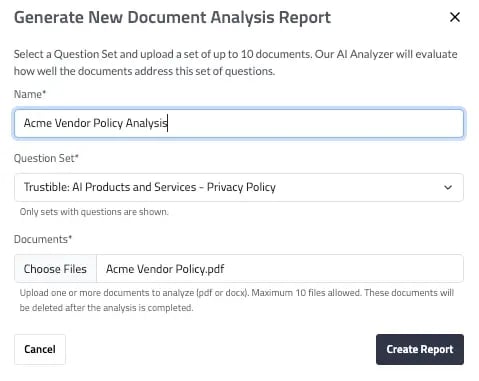
Name the report, select the question set to be used, and “choose file” for the document to be analyzed. Once a user has filled in this information click “Create Report.”
💡You can upload up to 10 documents at a time
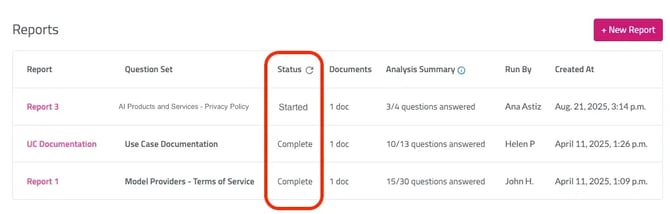
A user will then be redirected to the AI Analyzer homepage as the system generates your report. The report will be listed at the top of the list with the Status = Started. Continue to hit the refresh icon until the Status = Complete. When it is complete, click the report name to be taken to the results.
Reading the Report
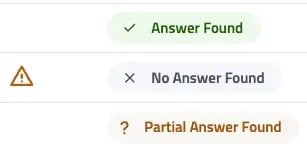
Below is an example of a report generated. There are three types of responses to a question:
- Answer Found: The document(s) sufficiently document the answer to the question.
- Partial Answer Found: A user should review the Explanation and Reference to assess if the details in the document(s) are sufficient.
- No Answer Found: The document(s) does not clearly answer the question.
To further explore the results, a user can consider the following:
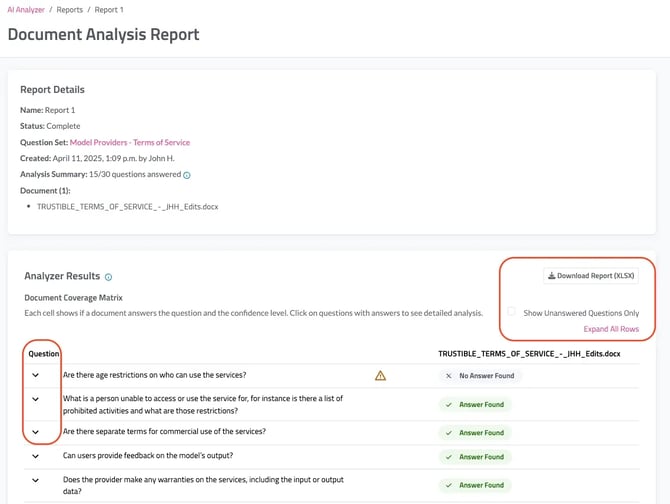
- Filtering by “Show Unanswered Questions Only” to focus only on the questions that do not have sufficient information.
- Select “Expand All Rows” to see Explanations and References to each question.
- Down the report as a XLS file for further analysis.