
It’s original intent was to provide transparency to non-technical stakeholders, although many public model cards are still highly technical.
The model card tab navigates you to the model card inventory, which is used for documenting key compliance information about the individual models used to support AI use cases. Model cards can be archived and duplicated in a similar manner to use cases, by use the three dots on the far-right of the model card. You can also download the model card in CSV format by clicking the same three dots.
To view archived model cards, select the filter button on the top-right and select the “Archive” button. You can restore archived model cards by clicking the three buttons on the right of the model card and selecting “Restore.” If you still cannot find your model card, contact us at support@trustible.ai.
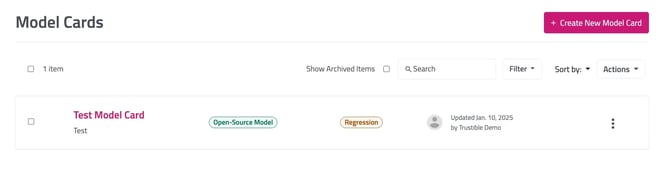
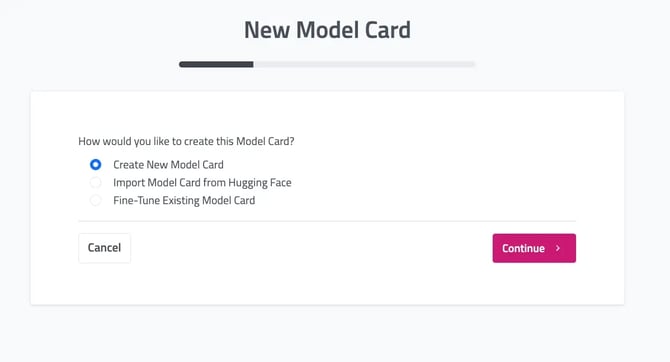
To create a new model card, select the “Create New Model Card” button on the top right-hand side of the screen. You will be presented with the following options to create your new model card:
- Create New Model Card. Will prompt you to complete an initial set of information about the model card, such as the name, description, and source code.
- Import a Model Card from Hugging Face. Selecting this option will prompt you to select the ID of model to import from Hugging Face.
- Fine Tune Existing Model Card. AI models may be altered/modified to incorporate new data, or adapted for a specific task. This process is known as ‘fine-tuning’. Trustible recognizes this common pattern and helps organizations track their model provenance and share information from several different layers of a model. Selecting this option will bring up a list of models currently in your model inventory to select. NOTE: A fine-tuned model can only have 1 ‘parent’ model.
Each model card in your inventory has a similar format as individual use cases. Model cards have a documentation tab, which allows you to manually enter information about the model card and has similar Guiding Questions as the use case documentation fields (see above under Use Case - Documentation). You can also create reports for your model cards, which can be exported in the Hugging Face Markdown format or as a pdf. The model card reports tab functions in a similar manner to the use case reports tab (see above under Use Case - Reports).