
For Admins
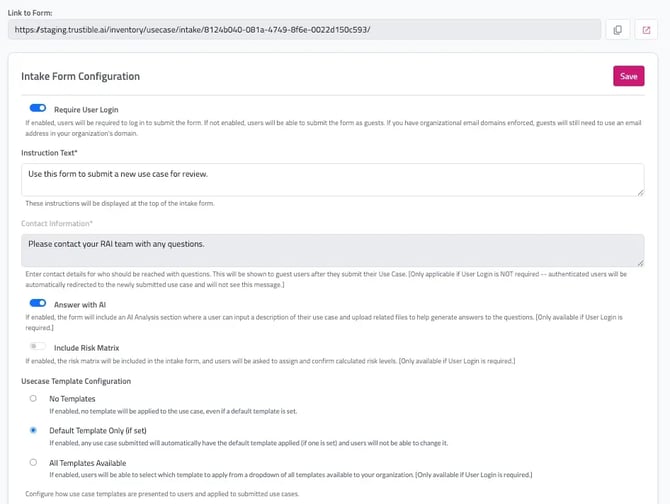
To review configuration settings, Navigate to Use Case > Proposal Form > Manage
- The intake questions used in "Answer with AI" reflects the same intake form your team has already built.
- This feature requires contributors to be logged into the platform. External intake form submissions via shareable URL do not support "Answer with AI," which prevents unauthorized document uploads. (See Require User Login toggle ON)
- Contributors can submit use cases directly but cannot save proposal drafts.
- Use Case Template Configuration can be updated based on your organization settings.
Admin Users Submitting with “Create with AI”
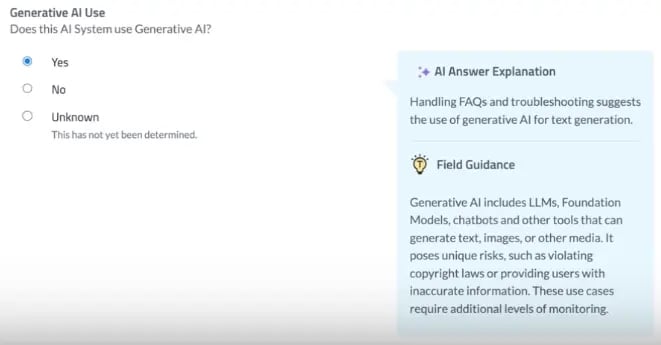
Create with AI allows users to submit a new use case record using natural language. Trustible’s AI will generate initial responses to your organization’s intake form or risk assessment, which should be reviewed prior to submission. If the AI system does not have enough information to answer a question, you will see a warning notice.
Navigate to the Use Case Inventory tab and select “Register AI Use Case”

Select “Create with AI”
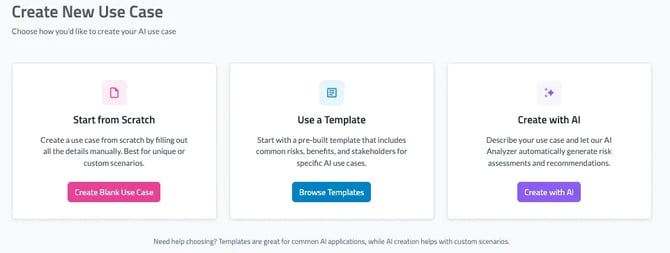
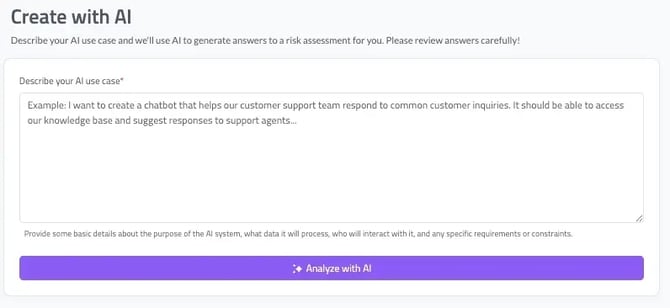
Here is where you’ll be prompted to describe the use case. The more detailed information you are able to include in the description, the more information the AI system can use to answer the questions. Once completed, click “Analyze with AI”
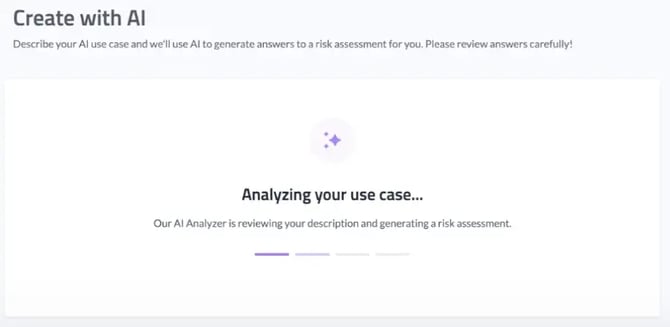
The system will then analyze your response and provide an initial output to be reviewed.
Below are screenshots of an example use case that has been generated:
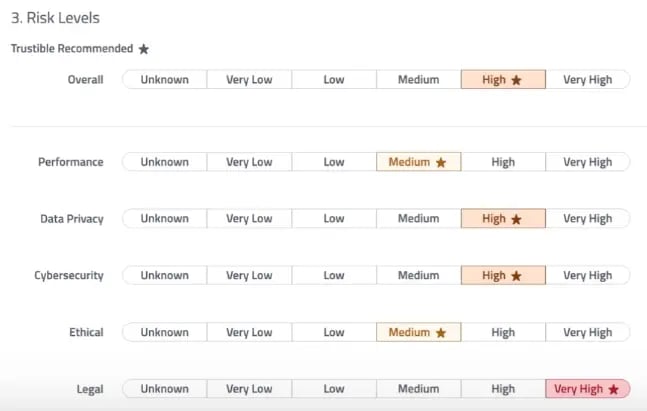
It will also generate initial risk scores to help teams quickly understand the potential risks of the new use case.
Once you have reviewed and filled in the missing responses, you can submit the use case for review.