
Users
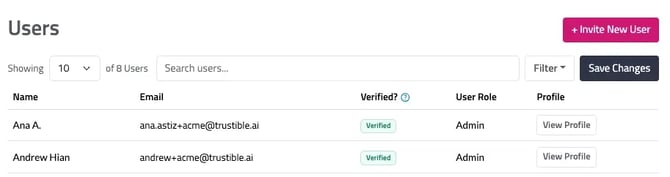
- View all users in your organization with details like name, email, role, and status
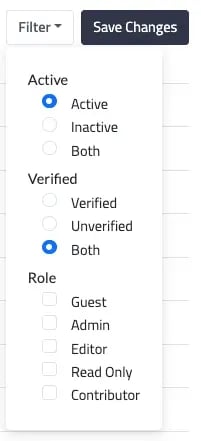
- Use the … Filter to view a profile, deactivate, reactivate a user, or review users by role
Note: The default Filter is set to display Active users
Managing Users
- Edit roles via View Profile (Admins cannot be reassigned)
- Manage invitations via Manage User Invitations
- Track sent invites, sender, date, and status
- Extend or revoke invitations Invite new users via
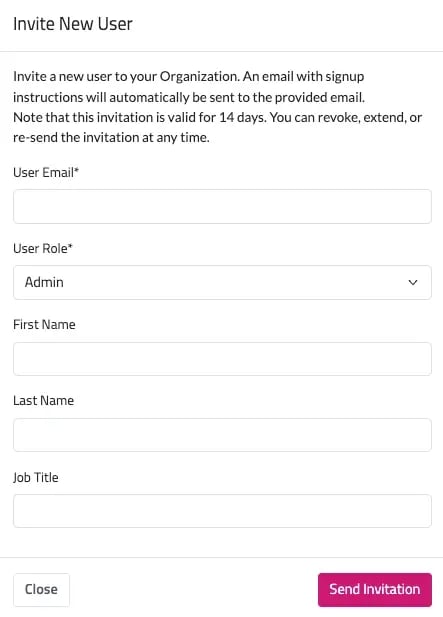
- Invite New User → enter email + role + first and last name + job title → Send Invitation
The new user will receive an email notification prompting them to set-up their credentials.
Information about users of the Trustible Platform associated with your organization will be listed under “Users.” This information will include the user’s name, email, role, and status (such as inactive or guest). To view additional information about the user, click the “…” on the far right column. Here you can select to view the user’s profile, as well as reactive or deactivate a user. Information about user access levels can be found on the User Permissions page.
Editing and Managing Users
You can edit user roles and manage user invitations on the Users & Teams page.
To edit a user’s role, click the “View Profile” button on the row of the desired user. For users that you can edit roles for, a drop down will appear that allows you to change roles. You cannot change roles for users listed as Admins.
To send or manage invitations for future Platform users, click the “Manage User Invitations” button. You will navigate to a screen that allow you to see who has been sent a user invitation, who invited the individual, when it was sent, and whether it expired. You can also extend invites or revoke an invite by click the respective buttons next to the relevant user. To invite a new user, click the “Invite New User” button in the top-right hand side of the screen. You will receive a pop-up asking for the new user’s email and allow you to select their role. To send, click “Confirm Invitation.”