1. Account
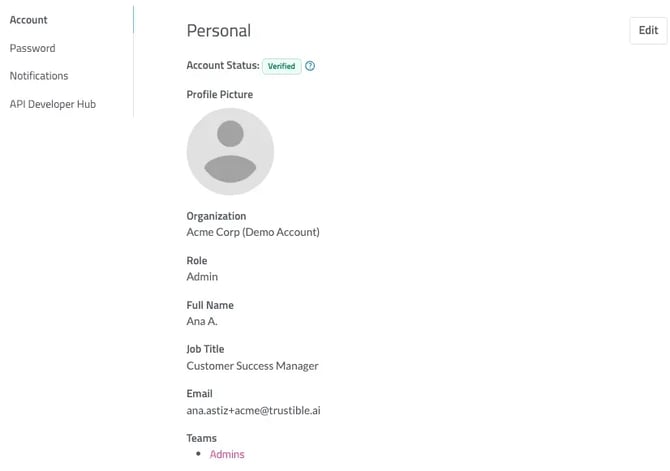
The account tab provides you with an overview of your personal information. You are able to change your profile picture, name, and title. You can see your role on the Trustible Platform, such as “Admin,” as well as what teams you are assigned to on the platform.
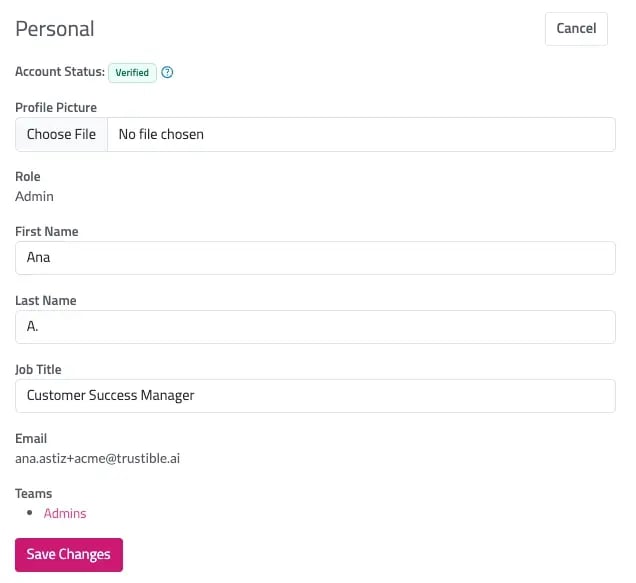
Editing Personal Information
Click the “Edit” button in the top right-hand corner of the screen. To save changes, click the “Save Changes” button at the bottom of the page. To exit the edit function, click the “Cancel” button in the top right-hand corner of the screen.
2. Password
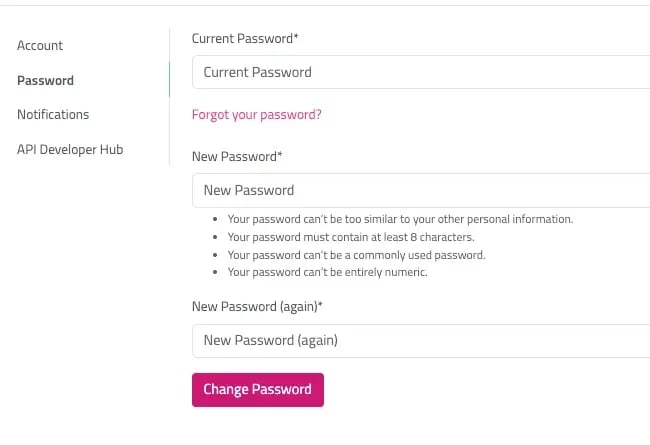
The password tab allows you change your password. Please note that you will need your current password to create a new one. If you forgot your password, click the “Forgot Password” link. For further instructions on resetting your password, please visit the Getting Started page.
3. Notifications
The notifications tab allows you to control when you will receive emails related to changes in the Trustible Platform. This includes when a new use case is created or when a Task has been assigned to you. To turn on or off notifications, click the on/off slider next to the specific notifications. To save your notification preferences, click “Save Preferences.”
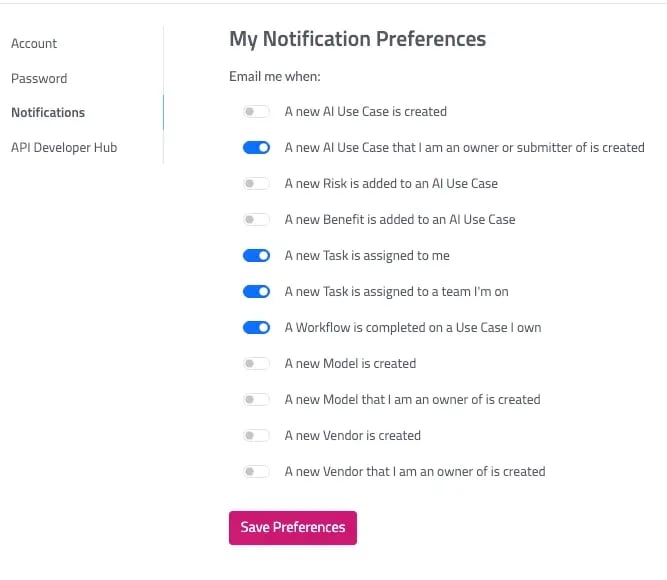
The “Remind Assignee” feature, which triggers an email to the assignee of a specific task will override their email notification preferences.
4. Trustible Developer Hub
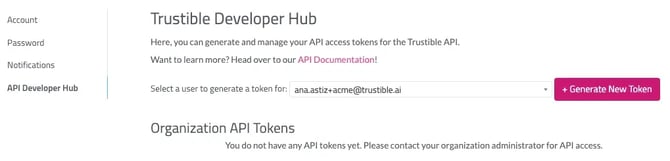
Admin accounts will have the option to create API tokens. Use the API Developer Hub to access the API Documentation and generate new tokens. Tokens are specific to users and organizational tokens are not currently available.