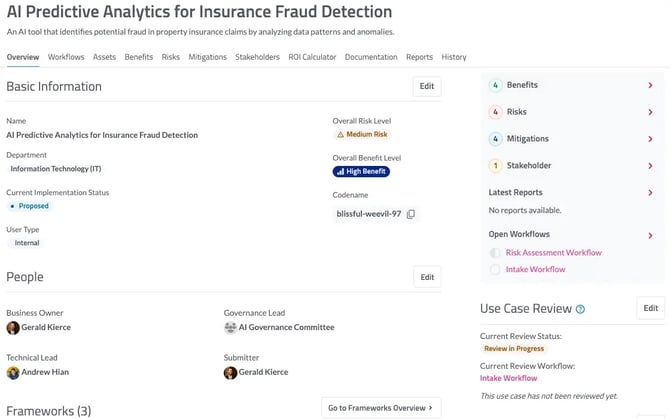
When you open a use case, you’ll land on the Overview page. Below the use case description, you’ll see a navigation bar with tabs for Workflows, Assets, Benefits, Risks, Mitigations, Stakeholders, ROI Calculator, Documentation, Reports, and History. Additional guidance on each of these features is provided below.
The Overview page displays key metadata captured during intake, along with information collected across the use case, including assigned stakeholders, review status, and recommended frameworks.
Workflows
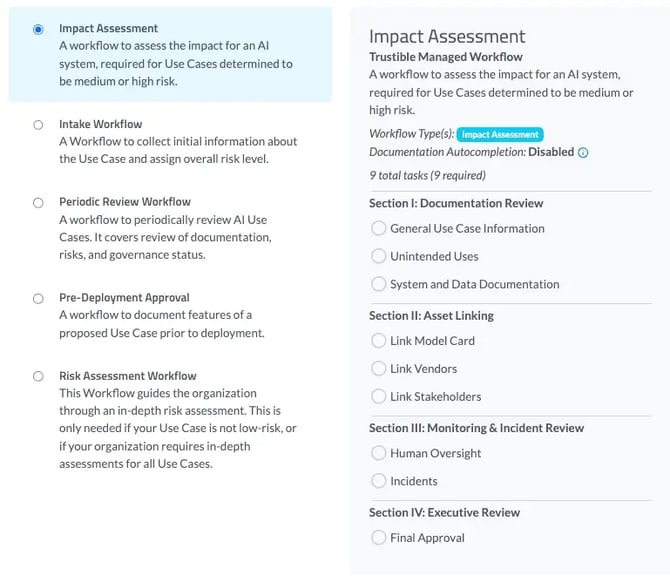
A Workflow is a sequence of tasks for you, or users associated with your organization on the Trustible Platform, to complete. Click “Add Workflow” to navigate to our workflow options, which include Intake, Risk Assessment, Impact Assessment, and Pre-Deployment Review Workflows.
Workflows can include groups of tasks, which can be assigned to different individuals depending on their role in the AI Governance review. Depending on email preferences, users can be notified when specific tasks actions have been taken. To set your notifications, navigate to My Account > Notifications.
Most organizations will have the Intake Workflow be automatically added once a use case has been submitted. This is used as the initiating action to begin the use case review. To learn more about how to use workflows, click here.
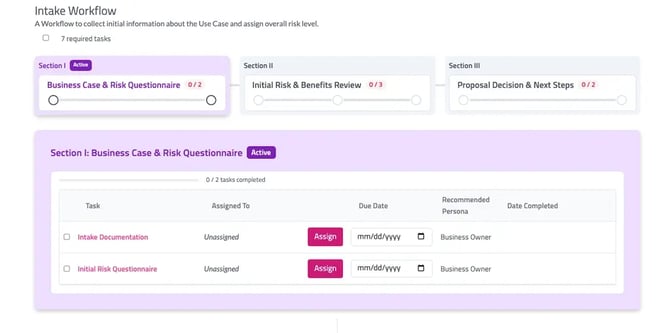
When you create a new use case, you will automatically begin an Intake Workflow. This workflow is intended to guide AI governance teams to collect and review proposed use cases of AI.
Each Workflows’ tasks are separated into Task Groups, which help indicate your progression with completing the Workflow. You may only complete tasks that are in section labelled “Active.” When you complete all the tasks in the Task Group, the next Task Group will become active and task assignees will be notified.
For accounts that have the Custom Workflows feature activated, Task Groups can be marked as optional. To learn more about custom workflows, visit our Customization Center support page.
Assets
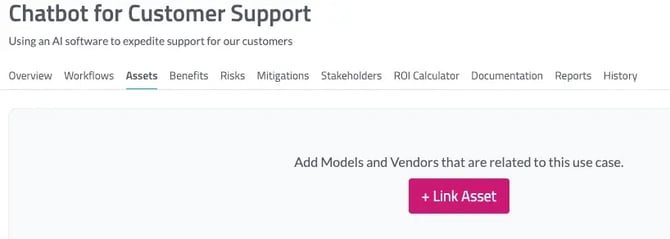
Assets allow users to link Model Cards and Vendors to a specific use case. A more detailed explanation about Model Cards and Vendors can be found below. To link an asset, click the “Link Asset” button under the Asset tab. You will be prompted with a pop-up to select an existing asset or create a new one.
Benefits
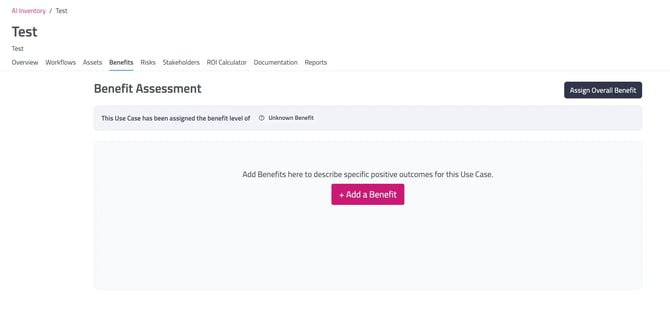
The benefits tab helps you list out the reasons why you want to build the AI use case, allowing collaborators to compare the pros (benefits) and cons (risks) of implementing a new use case. To get started, click the “Benefits” section within the AI Use Case in the Inventory section, then click the “Add a Benefit**”** button on the top right side to describe the potential benefit from your AI use case.
Once you have documented the appropriate benefits, you can assign an overall benefit rating. Click the “Assign Overall Benefit” button to receive a pop-up that will allow you to select a benefit level of from very low to very high, as well as provide a justification for your choice.
Risks
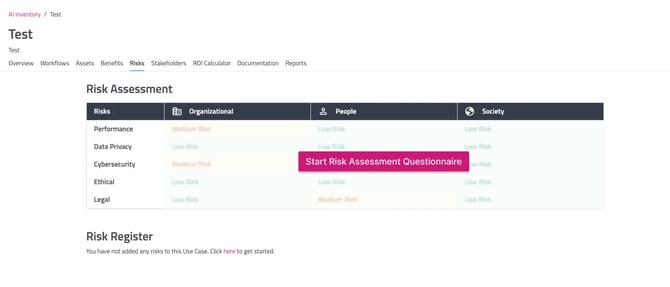
On the use case’s “Risks” page, you are able to add risks by selecting the get started option under the Risk Register heading. You will be brought to a page with pre-loaded risks, which are organized by risk categories (e.g., Bias and Fairness). If you would like to include a risk that is not already included as a type in our platform, click the Custom Risk button to design your own risk. Once you have added a risk to your use case, there is an option to add mitigations. This option is located at the far right of the risk panel in the dropdown menu when you click on the three dots.
You can also determine risk levels for your use case across common risk categories. To begin this process, select “Start Risk Assessment Questionnaire” on the risks page. Once the risk assessment questionnaire (which includes the Intake Risk Questionnaire and the Detailed Risk Questionnaire) is complete you will see a risk matrix based on the information you provided, along with risk recommendations. The risk matrix is organized around five risk categories: Performance, Data Privacy, Cybersecurity, Ethical, and Legal. Based on your answers, each risk category will display a risk rating of very low to very high. The initial set of ratings are Trustible’s recommendations, but you can edit them as appropriate.
Stakeholders
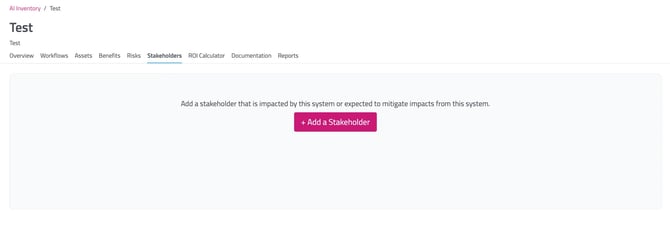
Stakeholders are individuals or groups that may be impacted or are expected to be impacted by the specific use case. Users can add Stakeholders to their AI Use Cases and link each Stakeholder with the benefits and risks that impact them. To add a stakeholder, click the “Add Stakeholder” button to navigate to the stakeholder taxonomy. When you click “Add” next to a stakeholder, you will be prompted to add applicable risks and benefits.
For more information about stakeholders, please see our blog post.
ROI Calculator
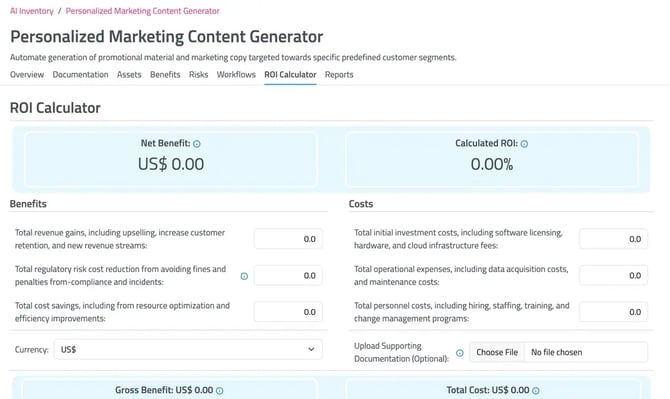
The ROI calculator can help organizations document and track which AI use cases may yield the biggest benefits, for the lowest costs. Users can estimate and track which projects have the highest intended ROI, and register any supporting documents that justify those values/calculations.
Documentation
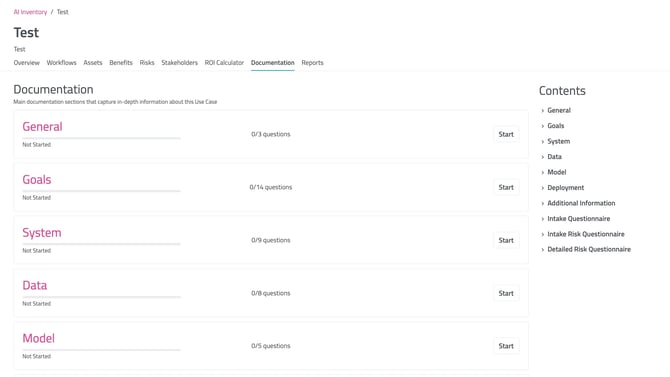
The documentation tab captures in-depth information entered about the use case from various workflow fields. Users can also manually enter information in fields under each other topics (e.g., General, Goals, and System).
Most recommend fields in the documentation section have suggested Guiding Questions in a box located to the right of the documentation field to help you with your answers. If you would like to use our AI feature to review your answers to the guiding question, click the “Review with AI” in the Guiding Questions box. If you would like more guidance to assist you with filling out the documentation field, click “More Guidance” and a side window will appear on the right-hand side with additional information.
Reports
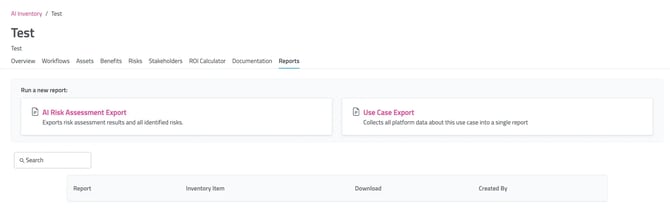
The reports tab allows you to export information about the use case in a pdf format. You can create an AI Risk Assessment Report, which exports risk assessments results and all identified risks, or a Use Case Report, which collects all platform data about the use case into a single report.
To run a new report, click on “AI Risk Assessment Export” or “Use Case Export.” All downloaded reports will be stored and available for redownload under the use case’s reports tab.