
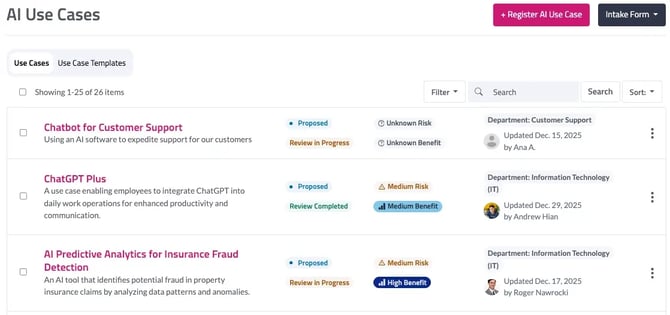
Use cases will show the name, status (e.g., proposed or live), the overall risk and benefit levels, as well as the date that the use case was last updated and by whom. To archive or duplicate a use case, click the the three dots on the far right-hand side and select the appropriate option from the drop-down menu.
You can also filter, search, and sort your use case inventory by using respective buttons and fields located at the top right-hand side of the page.
Creating a Use Case
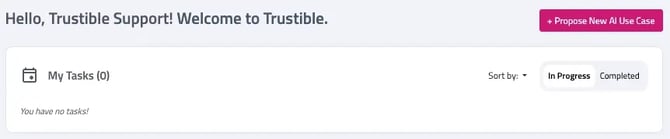
To create a new use case, navigate to the home screen click the pink “Propose New AI Use Case” button on the top right of the screen to open a new tab with your organization’s intake form. This is the view available for contributors.
Creating a Use Case Using “Create with AI”
Create with AI allows users to submit a new use case record using natural language. Trustible’s AI will generate initial responses to your organization’s intake form or risk assessment, which should be reviewed prior to submission. If the AI system does not have enough information to answer a question, you will see a warning notice.
Navigate to the Homepage tab and select “Register AI Use Case”
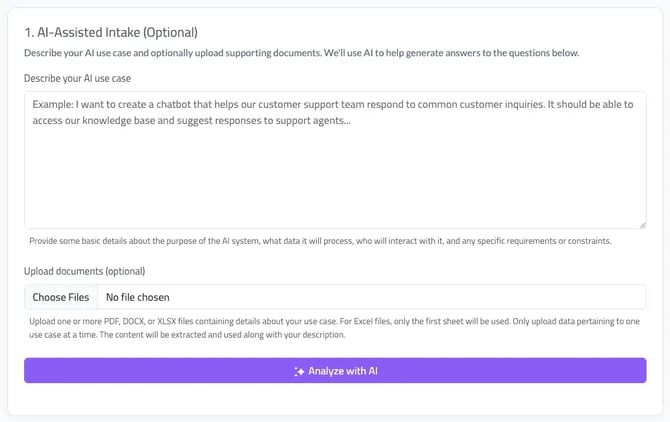
Here is where you’ll be prompted to describe the use case. The more detailed information you are able to include in the description, the more information the AI system can use to answer the questions. You can also attach a document, the AI will extract information from the document to complete the questions. Once you are satisfied with your prompt or the attachment has successfully uploaded, click “Analyze with AI”
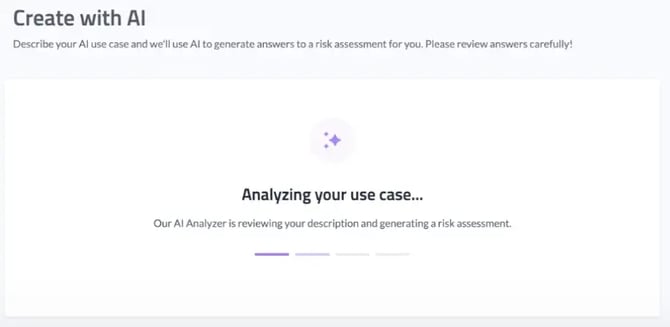
The system will then analyze your response and provide an initial output to be reviewed.
Below are screenshots of an example use case that has been generated. Responses are designated with three purple stars:
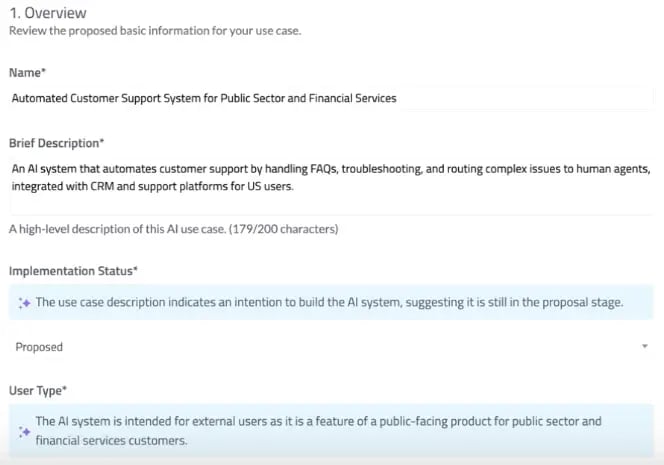
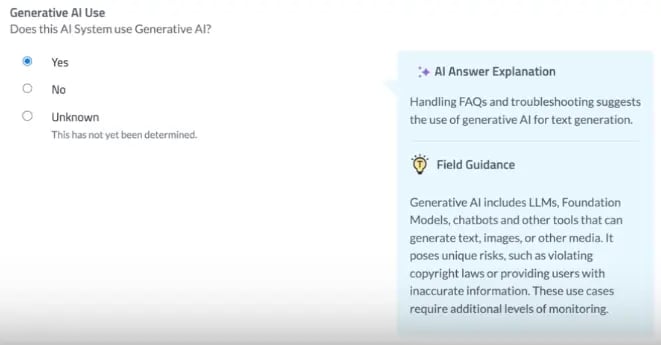
The blue box on the right includes the "AI Answer Explanation," which users can reference to understand how the AI arrived at its recommendation, along with field guidance to help them determine the most appropriate response to each question.
When there isn't enough information for the AI to answer a question with confidence, it will flag that question with a yellow box. The form will not submit automatically, so we strongly encourage all users to review their responses before submitting.
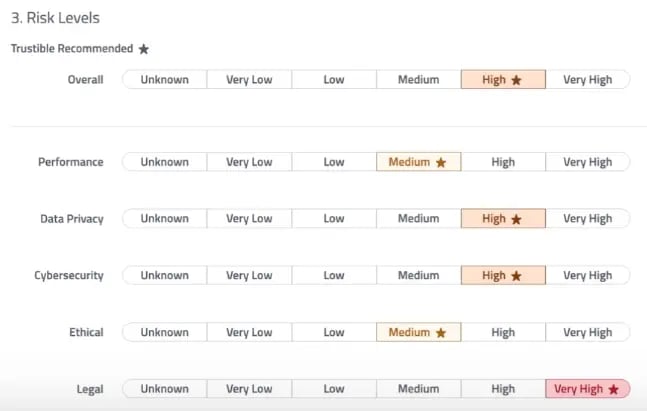
Admin Note: Admin teams can also configure the use case intake form to display the Risk Matrix. AI will generate initial risk scores, which can help users easily understand the potential risks of the new use case.
Use Case Templates
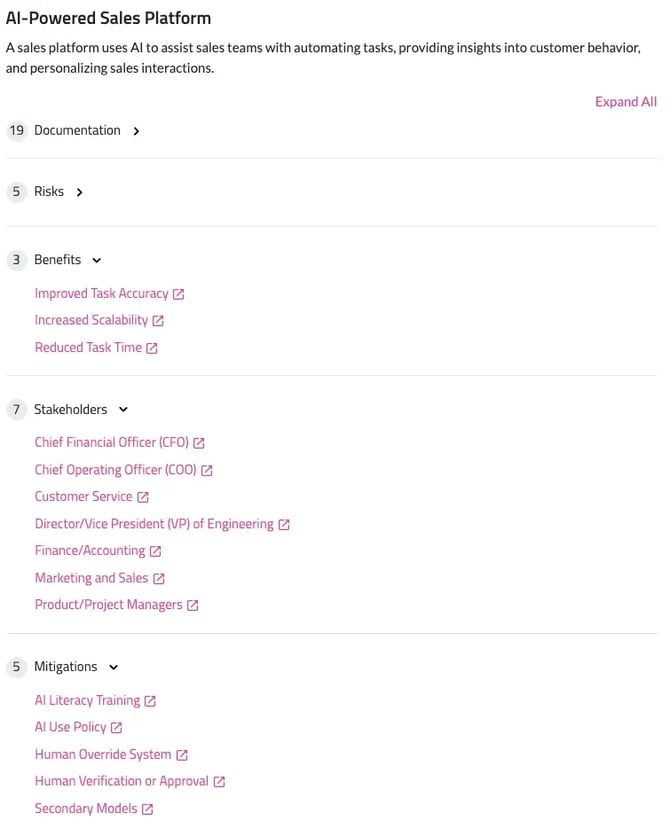
For organizations that review similar use cases and repeatedly apply the same risks, benefits, stakeholders, mitigations, or documentation fields, templates reduce repetitive work and ensure consistency across reviews. Use Case Templates help assessors and editors speed up the review process by automatically pre-populating key information before a use case is submitted. Trustible provides pre-built templates that teams can use as-is or duplicate and customize to fit their needs.
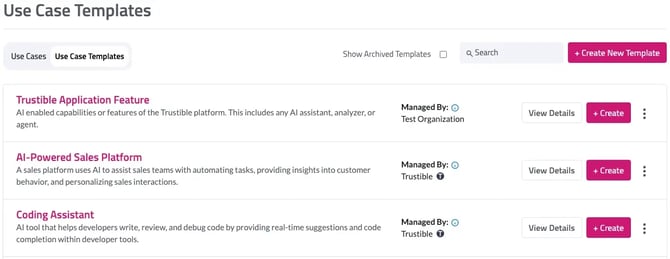
Here is an example template. Trustible is building the functionality to add custom attributes into templates - this will be released in 2026.
Use Case Intake Form

Trustible admin users will see an option called “Manage Intake Form” on their Use Cases inventory page.
Clicking on this will bring the user to a page where they can configure the instructions for the intake form. This includes setting some user instructions, contact information, and what workflow will automatically get triggered once a new use case is submitted. Admins can also get the URL for the form here to distribute internally. This form does NOT require the user to have a Trustible login.
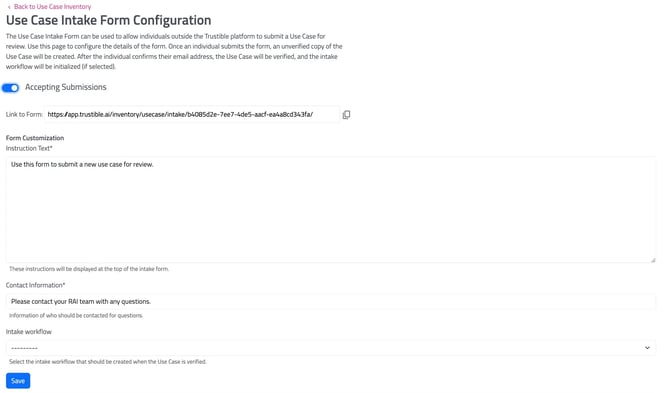
The link will send users to a dedicated form to fill out basic information about a use case. If you’d like to customize what information is collected in this intake form, please contact us at support@trustible.ai.
After users submit the form, submitter will receive an email verification link. The proposed use case will be in a ‘pending state’ until the user validates their email.
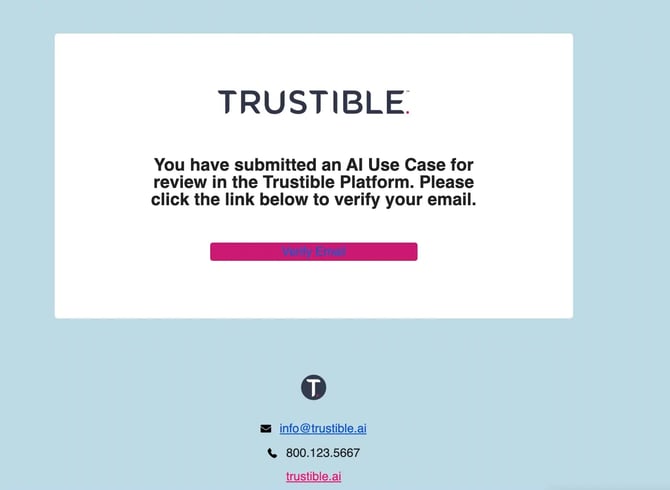
Once the submitter’s email is verified, the new use case will appear in the Trustible Use Case inventory, and an intake workflow will automatically be created. Depending on your organization’s configuration, the first two tasks may be automatically assigned to the submitter and require additional information to help inform the risk scoring.
Archived Use Cases
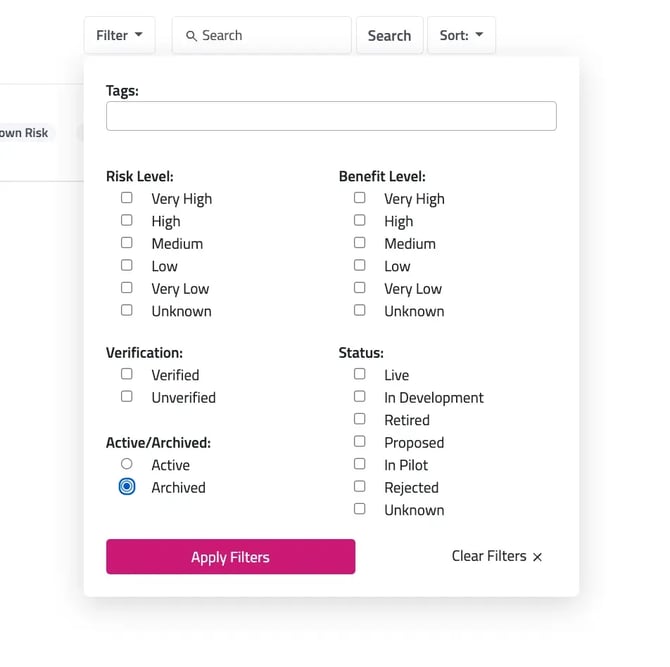
When you archive a use case, it will no longer be displayed in the main list of use cases. To view your archived use cases, select the “Filter” button and select the “Archived” button. If your AI Use Case was archived, it should now show up. Click the three dots on the right hand side of the use case and select Restore to move your AI Use Case out of the archive and into the main section.
If you still cannot find your AI Use Case, contact us at support@trustible.ai.