
Please note, to edit features under your organization will require you to have Admin level permission.
1. General
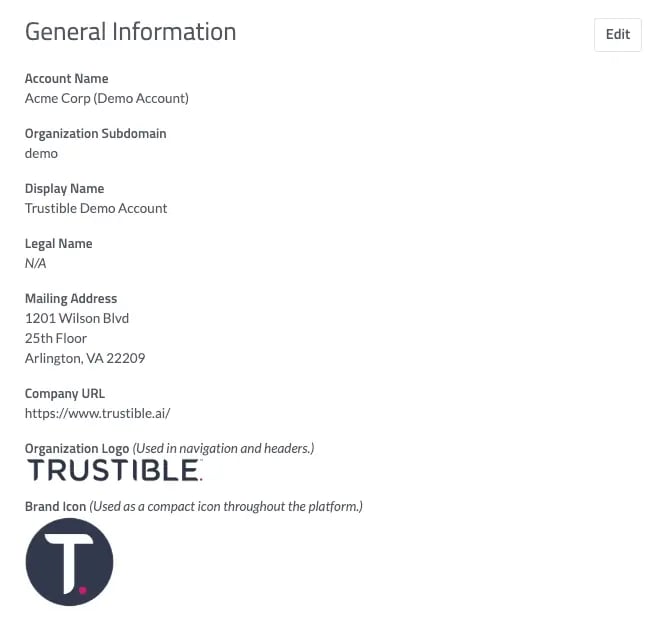
The general tab will allow you to review and edit basic information about your organization. This includes information such as the display name, organization’s legal name, mailing address, and company’s URL.
You can also add an “Organization Logo,” which will be displayed across the platform.
2. Tags
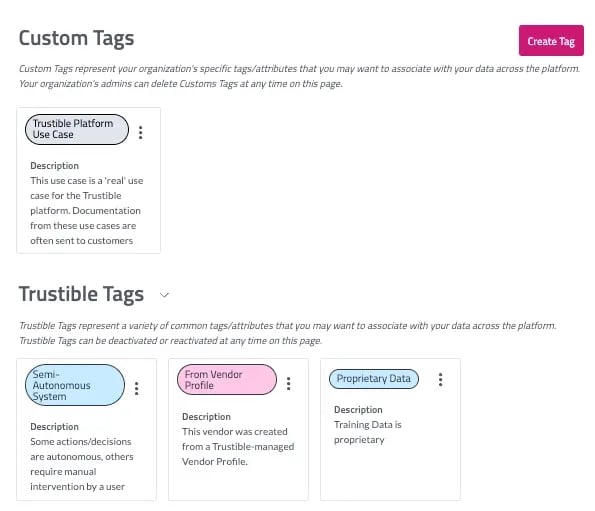
The tags tab will allow you to view tags that you have created, as well as Trustible Tags. Tags allow you to associate certain attributes to information that you may upload and store on the Platform. To create a tag, click the “Create Tag” button in top-right hand side of the screen. You will be prompted by a pop-up to enter a tag name and description. Click “Create Tag” to save and close the pop-up.
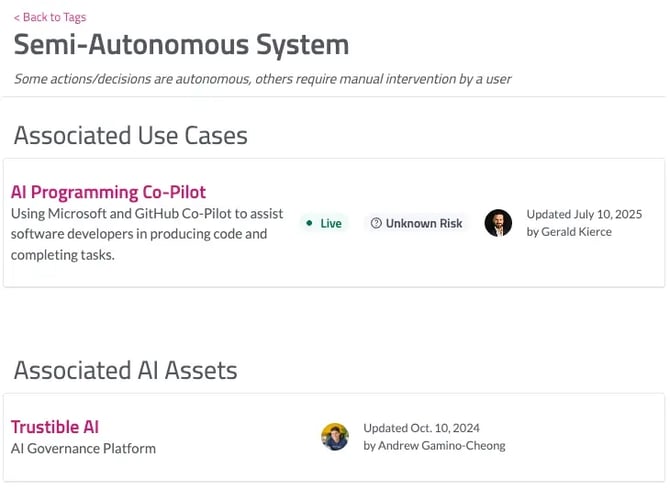
You can also view Trustible Tags, which are pre-populated attributes that are commonly use with AI governance. You can view more information about the Trustible Tags by clicking the three dots next to a specific tag and selecting “View More.” You will be redirected to a page that shows which use cases are associated with the Trustible Tag, as well as associated AI Assets. Trustible Tags can be deactivated or reactivated at any time by clicking the three dots next to a specific tag and selecting “Deactivate Tag.”
Below is the additional information that will be displayed when clicking “View More.”
TLDR: Tags let you add attributes to information stored on the platform.
• Create Tag → enter name + description
• Trustible Tags → pre-built governance attributesView details and associations via the … menu
• Deactivate or reactivate tags at any time
3. Integrations
The integrations tab will allow you to view the platforms that are integrated with the Trustible platform for your organization. View and manage integrations with supported services such as Okta, Databricks, or Azure.
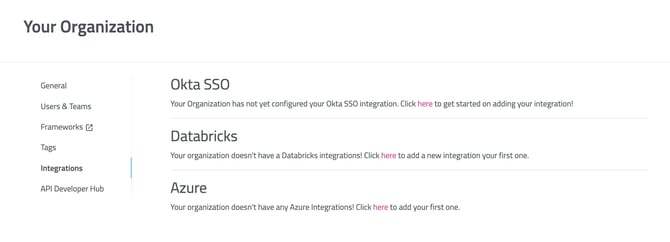
Admin accounts will have a SSO configuration tab, which allows users to connect your Okta or SAML Entra account to the Trustible platform. If your Okta account is not connected, you will be presented with an option to “Connect Okta Account.” Visit the Okta Integrations page for more information.
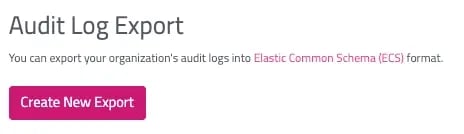
On this tab, you will also have the option to export audit logs, which can be used across other platforms.
4. Settings
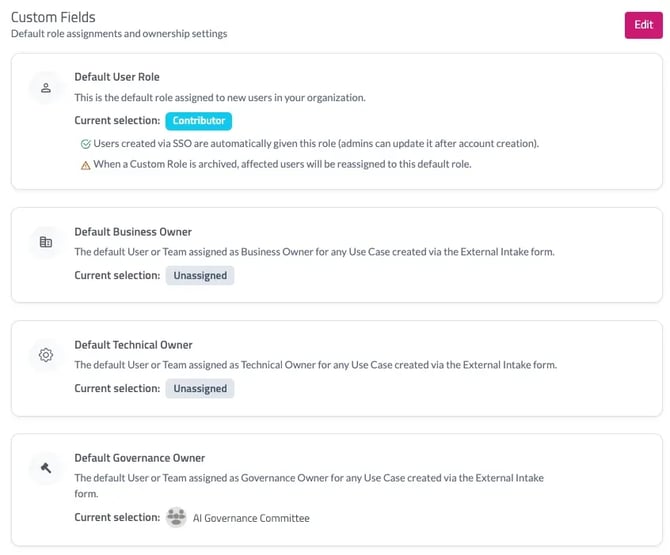
To help automate and expedite use case reviews, you can set default assignees to the different personas. Visit the Settings tab to set these personas, which can either be an individual or a team.
The Default User Role is what will be applied to any new users invited to join your organization’s Trustible instance.
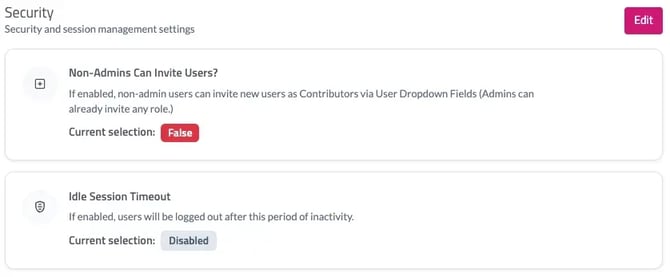
Under “Security,” admins can enable whether contributors can invite other users and set a timeout value to align with your organization’s security policies.
5. Customization Center
Read more about how to configure the platform to meet your AI Governance program’s structure:
6. Frameworks
The Frameworks tab takes you to the Trustible **Frameworks page** for managing regulatory and standards-based frameworks.
7. API Developer Hub
TLDR: API Developer Hub
Manage API access tokens for your organization.
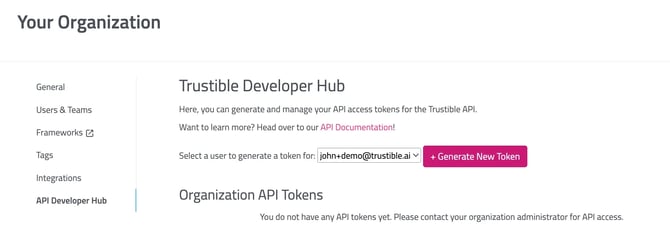
• Generate Token → select user → Generate New Token
• Manage existing tokens → Delete Token (via the far-right menu)
For more information, please visit Trustible’s API Documentation page.
The API developer hub tab allows generate and manage your API access tokens for the Trustible API. To generate a new token, select the user from the drop-down menu and click “Generate New Token.” To manage tokens, you can view the list of API tokens for your organization and select “Delete Token” on the far-right hand side of the screen for the respect token you would like to delete.
For more information, please visit Trustible’s API Documentation page.