
To set-up this connection, you will need to set-up a dedicated "Application" and provide details related to your subscriptions. We take your privacy seriously, so you will be able to delete these credentials and revoke access at any time.
For fine-grained control, you will need to set-up a separate Integration for each Machine Learning Workspace. These items can share the same Application.
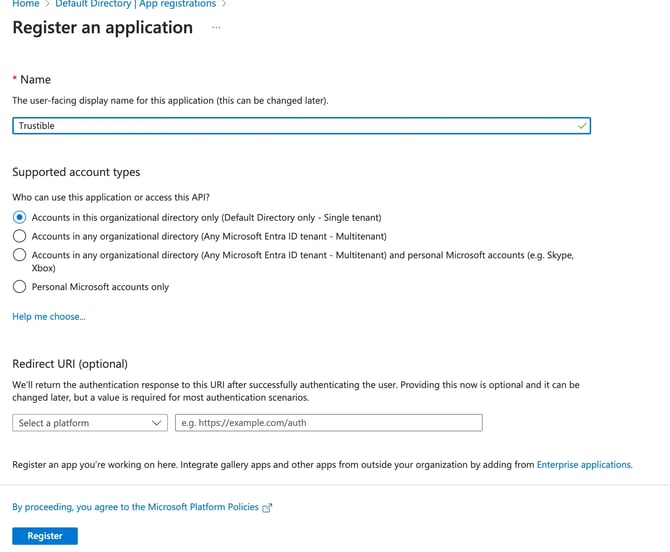
Application Set-up- Log-in to your Azure Portal and navigate to [App Registration]
- Click ‘Register New Application’
- Name the new application Trustible (or a similar unique name) and click Register

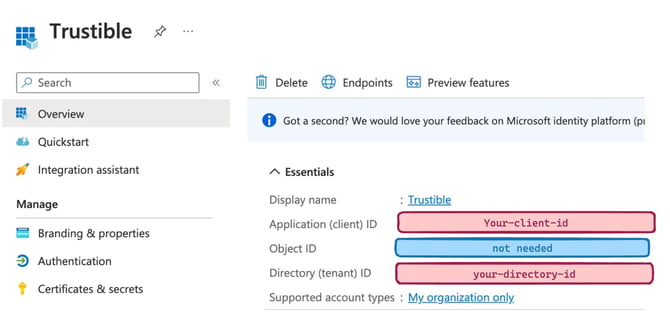
- From the new Application page, record the Application ID and the Directory ID:
- Next, you will need to generate a Client Secret - click on ‘Add a certificate or a secret’ next to ‘Client Credentials’

- You will be redirected to the ‘Certificates and Secrets’ tab.
- From here click `+ New Client Secret'
- Give it any name and desired duration
- Copy the generated ‘Value’ to a secure location- you will not be able to see this again. This is the ‘Application Secret’
- You are now done setting up the application. These are the first three values for the Azure Integration Form”
To interact with your ML systems, you will need to give the ‘Trustible’ Application access to the Subscriptions that contain your ML Workspace
- Navigate to ‘Subscriptions’ in the Azure Portal: https://portal.azure.com/#view/Microsoft_Azure_Billing/SubscriptionsBlade
- Select the Subscription associated with your ML Systems.
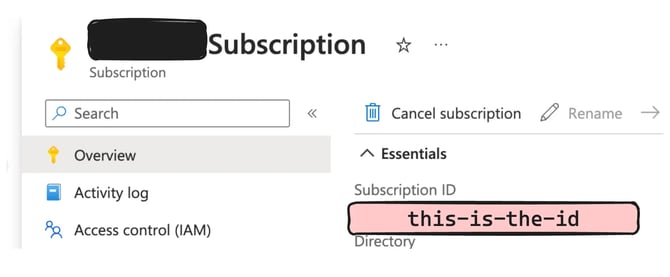
- Copy the Subscription ID into the Trustible Form.
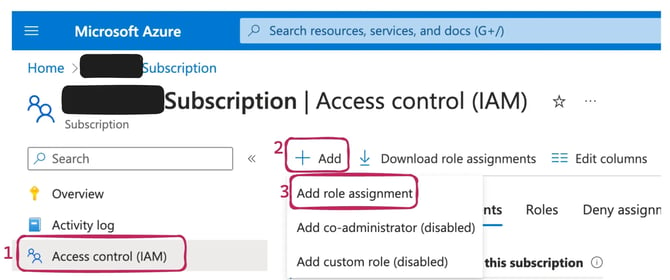
- From this Subscription’s page, set-up IAM Permissions:
- Use the Azure Portal to navigate to the Subscription Page
- Navigate to IAM and click to Add a new Role
- Select the Reader role (You can further customize permissions, this gives READ-ONLY access to all resources in this subscription)
- For Members, click ‘+ Select Members’. The application may not show up by default, and you may need to type it in the search
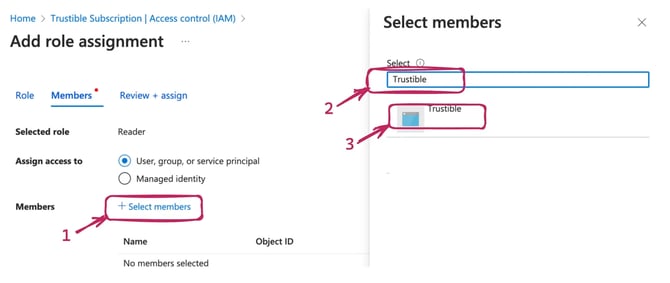
- Click Review + Assign
- For additional details, review this Azure Guide: https://learn.microsoft.com/en-us/azure/role-based-access-control/role-assignments-portal?view=azureml-api-2&tabs=delegate-condition
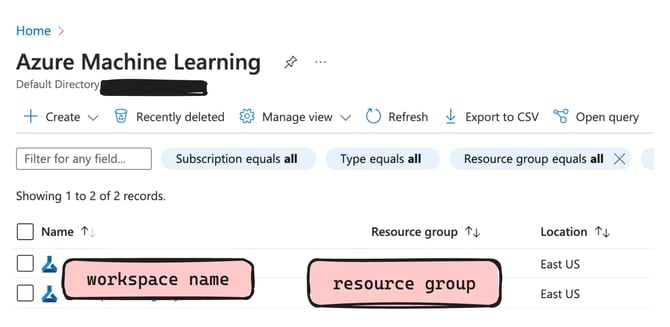
To finish the set-up process, you will need to add your Resource Group and Workspace Name. These can be accessed from your list of ‘Azure Machine Learning’ entries: https://portal.azure.com/#view/HubsExtension/BrowseResource/resourceType/Microsoft.MachineLearningServices%2Fworkspaces
With all of these details set-up, you should be able to access the Workspace from the Trustible Platform. Access will be available from most fields in your Model Cards: