
When a question in a workflow task is marked "Conditional," it only appears because a specific answer to a documentation field triggered it. To find out which answer and which field are responsible, you move between three places in the platform: the Workflow tab, the Documentation tab, and the Attributes tab.
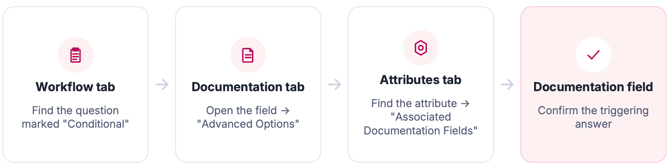
The Four Steps
1. Start in the Workflow tab: Open the workflow template, then open the task. Find the question labeled "Conditional." This tells you a hidden rule is controlling when that question shows up.
2. Check the Documentation tab: Search for the field connected to that question and open it. Scroll to the bottom to "Advanced Options." This section names the attribute that triggers the question.
3. Look up the Attributes tab: This tab is slower to load because of the amount of data it holds, so give it a moment. Search for the attribute from Step 2, open it, and look for "Associated Documentation Fields." Click that field.
4. Confirm in the Documentation field: This opens the field in a new window. Scroll down to the response options next to the attribute - this confirms exactly which answer triggers the conditional question.