
The Trustible MCP Server enables external AI Application and Agents to communicate with the Trustible platform. (Learn more about MCP here: https://modelcontextprotocol.io/docs/getting-started/intro).
When the MCP Server is connected, your Agent/Application will be able to perform the actions in the Trustible Platform listed under Available Tools.
Connecting to the ServerThe server can be connected to using Header-based Token authentication or via OAuth.
Authentication via Header-based Access Token
This approach is enabled in many developer tools (e.g. Augment, Claude Code), agent development systems (e.g. Azure Foundry) and agent coding libraries (e.g. Langchain).
To connect to the system:
- Generate an API token at in the API Developer Hub
- The MCP Server will take actions’ in the Trustible platform on behalf of this user
- Set-up the MCP Configuration with:
- URL: https://app.trustible.ai/mcp
- Or your org’s subdomain
- Add the header:
{"Authorization": "Token {YOUR API TOKEN}"
- URL: https://app.trustible.ai/mcp
Examples
Langchain (Python Agent Developer Library)
from langchain.agents import create_agent
from langchain_mcp_adapters.client import MultiServerMCPClient
client = MultiServerMCPClient(
    {
        "trustible": {
            "transport": "streamable_http",
            "url": "http://app.dev.trustible.ai/mcp",
            "headers": {
                "Authorization": f"Token <AUTHORIZATION_TOKEN>",
            },
        }
    }
)
agent = create_agent("gpt-5", tools)
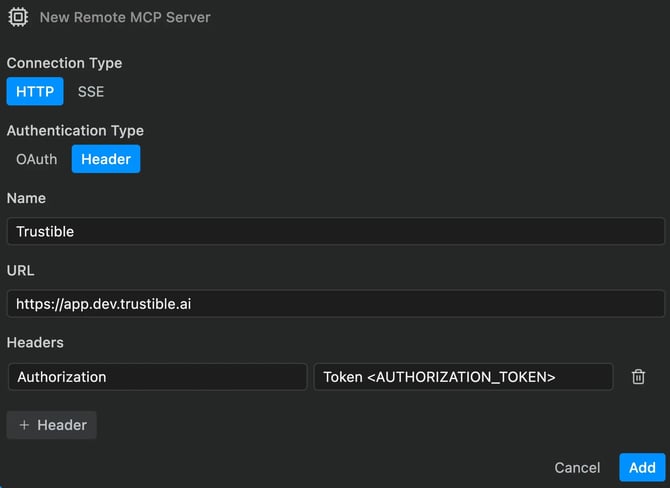
Augment in VSCode
Trustible can be added as a ‘Remote Server’ in Settings
Authentication via OAuth
This industry standard approach is the preferred method of connection for many AI Agents and tools. This will allow teams to connect to common platforms like Claude, Copilot, ChatGPT. Each platform will have their own documentation for how to configure the integration.
To connect to the system:
- From the API Developer Hub select “Register OAuth Application”
- In Trustible, fill out the registration form with a name for your connection, the redirect URIs provided by the tool you wish to connect to, the client type (confidential for almost all use cases), and the authorization grant type (Authorization code for almost all use cases).
- Redirect URIs to use should be available in the developer documents of the respective application you would like to register. Please check the documents in case the URIs below have been changed.
- Claude Redirect URIs from https://support.claude.com/en/articles/11503834-building-custom-connectors-via-remote-mcp-servers: https://claude.ai/api/mcp/auth_callback https://claude.com/api/mcp/auth_callback
- ChatGPT Redirect URIs from https://developers.openai.com/apps-sdk/build/auth/: https://chatgpt.com/connector_platform_oauth_redirect
- Redirect URIs to use should be available in the developer documents of the respective application you would like to register. Please check the documents in case the URIs below have been changed.
- Click “Register Application”. Securely store the resulting Client ID and Client Secret
- Follow instructions for your 3rd party tool to add an MCP connection
- Claude example:
- With admin permissions go to https://claude.ai/admin-settings/connectors and select “Add custom connector”
- Expand the “Advanced settings” drop down and provide the OAuth Client ID and OAuth Client Secret from Step 3.
- Set the name as you like and put the MCP endpoint for your environment, e.g. https://app.trustible.ai/mcp
- Click Add to save the MCP configuration to make it available to your Claude organization
- Users of your Claude organization with Trustible accounts in your Trustible organization can then navigate to the https://claude.ai/settings/connectors page and click “Connect” next to newly created connection to grant permission for Claude to query the Trustible MCP server on their behalf.
- Claude example:
Looking up use cases
See all your use cases Ask the assistant to list the use cases in your organization, or just the ones you own. You'll get each use case's name, description, risk and benefit level, creation date, last editor, and a link to open it.
Get the full picture on one use case Ask about a specific use case by name or ID (partial names work). The assistant returns its description, implementation status, owners, review status, risks, benefits, mitigations, stakeholders, and assets. If you have permission to see the documentation answers, it can include those too.
Check for duplicates before you start something new Describe what you're planning to build, and the assistant checks for up to three existing use cases that look similar. If nothing comes back, nothing close enough exists yet.
Review a use case's risk assessment Ask about the risk picture for a use case. The assistant returns the risk level a person assigned, the levels the platform recommends per category, which documentation questions are still unanswered, and which automated rules fired and why. This is useful context heading into a Risk Review.
Creating a use case
Requires the use case generator (intake) feature to be enabled.
A new use case starts as a proposal, a draft you fill in and then submit.
Start a proposal from a description Describe what you're building. The assistant reads your description, plus any files you've shared in the chat, and fills in as many intake questions as it can. It returns a link to the draft, a list of what's still unanswered, and for written answers, a sense of how completely each one covers the question. The more detail you give it, the more it can fill in.
See your drafts in progress Ask to see your proposals. You'll get each draft with how many questions remain. Once a proposal is submitted, it becomes a use case and drops off this list.
Open a specific draft Ask for a draft by ID, link, or name. You'll see every answer so far and every remaining question, along with its type (text, date, or multiple choice) and the available options where relevant.
See what the intake form asks Ask what questions are on your organization's standard intake form. This returns the full question set, independent of any one draft.
Update a draft all at once Share something new about your project, and the assistant re-reads it and updates every answer it affects, instead of asking you to update one field at a time.
Answer one question at a time Give the assistant an answer to a single question. Text answers can either replace what's there or add to it; multiple-choice answers always replace the existing selection. Written answers come back with feedback on how complete they are.
Fill out remaining questions as a form Instead of typing answers one by one, ask the assistant to show your remaining questions (3 to 6 at a time) as a short form directly in the chat, with radio buttons, checkboxes, text, and date fields. Your answers save automatically.
Check whether a template applies Before submitting, the assistant can check whether a Use Case Template should be applied, either your organization's default (applied automatically) or one that matches your description closely enough to suggest.
Submit your proposal Once you're ready, the assistant turns your draft into a real use case, applying a template's risks, mitigations, stakeholders, and documentation if one applies, and starts the intake workflow. The draft is removed at this point. If the draft doesn't pass validation, nothing is created, and you'll be told why.
Delete a draft The assistant can permanently delete one of your drafts and its answers. This cannot be undone, so it will confirm with you first.
Risk and mitigation reference
Browse the full taxonomy Ask to see every risk and mitigation available to your organization, with names, short descriptions, and categories.
Search risks Search by keyword to get a risk's full write-up: description, how to measure it, how to judge severity, real-world examples, references, and the mitigations recommended for it.
Search mitigations Search by keyword to get a mitigation's write-up: what it is, how it reduces risk, what evidence is recommended, and which risks it applies to.
Workflows
List a use case's workflows Ask for the workflows attached to a use case, along with each one's status and completion date.
Open a workflow Ask for the full contents of a workflow. You'll see its sections (task groups) and every task, with status, assignee, due date, and who completed it.
See which workflows you can start Ask what workflow templates are available. The assistant returns the templates your organization has enabled, by name and description, so it can match what you're asking for to a real template instead of guessing.
Start a new workflow on a use case Ask the assistant to start a specific workflow template on a use case. This requires write access, and the use case cannot be archived.
Tasks
See your tasks Ask what's on your plate. By default, this shows what's outstanding and actionable right now, matching your dashboard, but you can also ask to see completed tasks. Each entry includes the task, its workflow, the item it relates to, its due or completion date, and a link.
See your tasks as a list in the chat Ask the assistant to show a set of your tasks as a compact visual list rather than plain text.
Get the details of one task Ask about a specific task to see its name, status, assignee, and due or completion date, plus a summary of the earlier required tasks in the same workflow. For Risk Review tasks, this also includes the risk levels and the rules behind them.
Fill out a task's questions as a form Ask the assistant to put a task's questions in the chat as a fillable form. This works for documentation tasks (use case, model, vendor), overall risk and benefit assignment, and executive approval. For documentation tasks, you can answer some fields now and come back for the rest later. Your answers save automatically on submit.
Set risk levels in the chat For a Risk Review task, ask the assistant to show the risk matrix. You can set each category's risk level and the overall risk and benefit levels without leaving the chat. If the workflow already auto-completed the task, the assistant will tell you that instead.
Work through recommendations in the chat For a Recommendations task, ask the assistant to show the recommendations panel. From there you can pick which compliance frameworks apply (and answer their follow-up questions), start recommended follow-on workflows, and accept a suggested review frequency.
Refine one documentation answer Ask the assistant to update a single documentation field on a use case, model, or vendor task. This is meant for refining one answer over a few turns of conversation rather than resubmitting the whole form. Only the assignee or an admin can do this, and only once earlier tasks in the workflow are complete.
Reopen a completed task Ask the assistant to reopen a task, the same as clicking "Reopen Task" in the app. This requires write access. If the whole workflow is already closed, the workflow needs to be reopened first: the assistant cannot do that step.
Find a person or team Ask the assistant to look up a person by name, email, or title, or a team by name. This is how you turn "Jordan" into the exact person needed to reassign a task.
Reassign a task Ask the assistant to move a task to a different person or team, or to clear its owner. Allowed if you own the task or have general inventory write access.
Model intake (Model Cards)
Requires the newer agent interface to be enabled for your organization.
Research a model from its public page Give the assistant a public model card URL, and it starts a background research process that reads the page and builds a Model Card. You'll get a session ID right away while the work continues in the background.
Check on the research and file the result Ask the assistant to check on a research session. While it's running, it reports that. Once finished, it creates the Model Card in your inventory and returns its name and link. If the session failed, it reports the error.
Troubleshooting
The assistant says it can't do something This usually means either the required feature isn't turned on for your organization, or the action needs a permission level you don't have (for example, creating a use case requires write access). Check with your admin if you're not sure which applies.
The assistant doesn't see a use case I know exists As a contributor, you only see use cases you own through the assistant, the same as in the app. Ask an admin or the use case owner to check on it directly.
I can't undo something the assistant did Submitting a proposal and deleting a draft are both permanent. The assistant will confirm with you before deleting a draft, so review the confirmation carefully before approving it.
My task reopened but the workflow says it's still closed The workflow itself has to be reopened before an individual task inside it can be. Reopen the workflow first, then the task.