
If you have not already, reach out to support@trustible.ai to discuss enabling Okta SSO for your Trustible Organization.
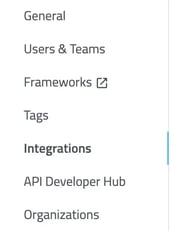
Within the Trustible platform, navigate to Organization > Integrations, and click the link to add a new Okta configuration.
In Okta, navigate to Applications and choose the Browse App Catalog. In the App Catalog, search for the Trustible application, and add it to your Okta organization. You will be prompted for your Trustible Organization ID. This value is displayed for you on the Trustible Platform within the integration creation page.
If you have trouble identifying your Trustible Organization ID, contact support@trustible.ai.
Once you have finished adding the application to your Okta organization, provide the following information in the Trustible Platform and click “Submit”
- Client ID: can be fetched from the “Sign On” tab of the Trustible Application within Okta
- Secret: can be fetched from the “Sign On” tab of the Trustible Application within Okta
- Okta Domain: your Okta Org Domain. This looks like “https://<my_org>.okta.com”
Assign whatever users or groups that need access to the Trustible application.